VAT Calculator (Add or Remove VAT)
Enter an amount and the VAT rate to get the net, VAT and gross amounts, one line or a whole invoice.
A VAT calculator works out value added tax (VAT) for you. Enter a net price and it adds VAT to give the gross price, or enter a gross price and it removes VAT to show the net price and the VAT amount. It can also find only the VAT on an amount, or work out several items at different rates on one invoice.
This online VAT calculator runs in your browser. It is free and needs no sign-up, and nothing you type is uploaded. You enter the VAT rate yourself, so you can use the rate that applies to your goods and country. The result updates as you type, so you can check a figure before you put it on a price list or quote.
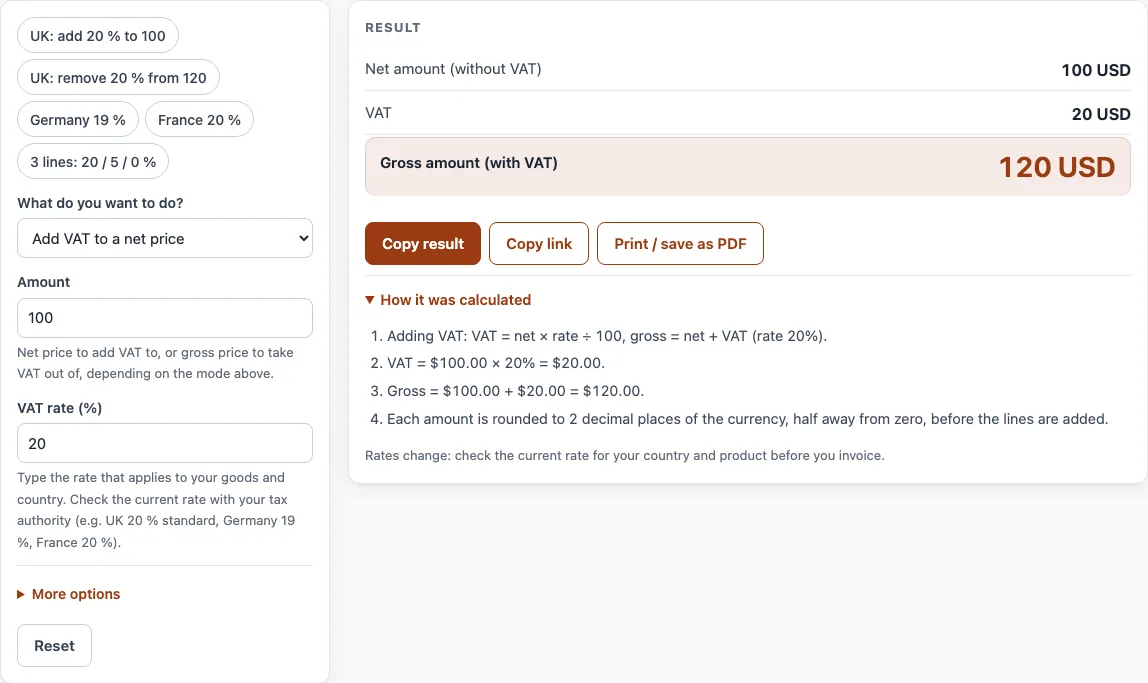
How to use the VAT calculator
- In What do you want to do?, choose a mode: Add VAT to a net price, Remove VAT from a gross price, Find the VAT amount only, or Several lines, different rates.
- In Amount, type the net price (for adding VAT) or the gross price (for removing VAT). The help text under the field confirms which one to enter.
- In VAT rate (%), type the rate for your goods and country, such as 20 for the UK standard rate. Check the current rate with your tax authority, because rates change.
- If you use several lines, set Line amounts are to Net (without VAT) or Gross (with VAT). Then, in Lines (amount and rate), type one line per item, with the amount, a space, and the rate. For example,
100 20means 100 at 20 %. You can enter up to 50 lines. - Choose your Currency from the list.
- Read the results: Net amount (without VAT), VAT, Gross amount (with VAT), and Average VAT rate (VAT ÷ net). Open How it was calculated to see each step with your numbers.
To try the tool quickly, press an example button such as UK: add 20 % to 100. Fields that are less common are under More options, and Reset restores the starting example. Copy link keeps all your inputs in the page address, so opening the link shows the same result. Print / save as PDF prints your inputs, the result, the steps and the date.
How do you add VAT to a net price?
To add VAT, multiply the net price by one plus the rate: gross = net × (1 + rate). For a net price of 100 at 20 %, the gross is 100 × 1.20 = 120, so the VAT is 20. Use the Add VAT to a net price mode when you start from a price before tax.
How do you remove VAT from a gross price?
To remove VAT, divide the gross price by one plus the rate: net = gross ÷ (1 + rate). The VAT is then gross minus net. A gross price of 120 at 20 % gives a net price of 120 ÷ 1.20 = 100, and VAT of 20.
What is a reverse VAT calculation?
A reverse VAT calculation is how you take off VAT: it works backwards from a price that already includes VAT to find the net price and the tax inside it. It is the same as removing VAT from a gross price. People often search for this as a backward VAT calculator or a VAT removal calculation.
Why is taking 20 % off the gross price wrong?
Taking 20 % off the gross price gives the wrong answer. For a gross of 120, 120 × 0.8 = 96, but the correct net price is 100. The 20 % is a percentage of the net price, not of the gross, so the divisor must be 1.20.
What is the VAT fraction for 20 % VAT?
For 20 % VAT, the VAT in a gross price is the gross divided by 6, which is the VAT fraction 1/6. In a gross price of 120, the VAT is 120 ÷ 6 = 20. This shortcut only works for 20 %; other rates need the full formula.
What does estimated VAT mean?
Estimated VAT is a VAT amount worked out in advance, before the final sales figure or invoice is confirmed. It uses a rate you expect to apply, so it can change if the amount or rate changes. A calculator is useful for estimates like this, because you can test different rates and amounts quickly.
How do you handle several VAT rates on one invoice?
An invoice can have items at different rates, so VAT is worked out for each rate separately. Use the Several lines mode and enter each item on its own line, such as 100 20 and 50 5. The tool then gives totals and an average VAT rate.
How does VAT compare with sales tax and GST?
VAT is charged at each stage of sale, and businesses reclaim the VAT on their purchases. The US has no VAT and uses state and local sales taxes. Canada, Australia, New Zealand and India use GST (Goods and Services Tax), and the calculation method is similar to VAT.
Sources
- UK 20% standard and 5% reduced rate: GOV.UK VAT rates (checked 11 October 2026).
- Germany 19%: § 12 UStG (checked 11 October 2026).
- France 20% normal rate: economie.gouv.fr, Tout savoir sur la TVA (page dated 15 January 2026, checked 11 October 2026).
- Every formula is worked through by hand in the tool’s tests (at least five reference cases per calculator).
Worked examples
| Input | Result |
|---|---|
| $100.00 @ 20% (Add VAT to a net price) | net $100.00, VAT $20.00, gross $120.00 |
| £120.00 @ 20% (Remove VAT from a gross price) | net £100.00, VAT £20.00, gross £120.00 |
| €250.00 @ 19% (Add VAT to a net price) | net €250.00, VAT €47.50, gross €297.50 |
| £99.99 @ 5% (Find the VAT amount only) | net £99.99, VAT £5.00, gross £104.99 |
| 3 lines at different rates | net £180.00, VAT £22.50, gross £202.50 |
Calculated by the tool above with these values.
Frequently asked questions
Can I use this calculator for US sales tax?
The arithmetic is the same: adding or removing a percentage. The US has no VAT, but you can type your state and local sales tax rate here and read “VAT” as sales tax. Sales tax is usually added at the till rather than included in shelf prices.
Why does the tool show a warning at a 0 % rate?
At 0 % the net and gross amounts are the same, so there is no VAT to add or remove. The warning tells you that the result is correct and that you have not missed a value.
Why do I get an error about a rate above 100 %?
VAT rates are percentages, so 20 means 20 %, not 0.20 or 2000. A rate above 100 % is almost always a typing mistake, so check the number and enter it as a percentage.
What does the average VAT rate show?
The average VAT rate is the total VAT divided by the total net amount. It is useful when several lines use different rates, because it shows the overall rate across the whole invoice.
Are the rates built into the calculator?
Only as example buttons: UK 20 % and 5 %, Germany 19 % and France 20 % (rates checked on 11 October 2026 against GOV.UK, § 12 UStG and economie.gouv.fr; see Sources above). Otherwise you type the rate yourself. Check the official rate for your country and product, because rates change.
Can I use the results in business documents?
Yes. Results can be used in commercial work such as price lists, quotes and business plans, with no attribution required.
Does the tool store what I type?
Everything runs in your browser, and nothing you type is uploaded. Use Copy link if you want to return to the same inputs later.
Related tools
- Discount calculator — percent off, sale price and stacked trade discounts.
- Markup calculator — the price from cost and markup, or the markup between cost and price.
- Profit margin calculator — profit, margin and markup from cost and price, or the price for a target margin.
- Late payment interest calculator — interest and compensation on an overdue invoice.
- Sales commission calculator — flat and tiered commission plans plus base pay.
- Price increase calculator — percent increase and the new price that keeps your margin.